Shrinking Blog Images: PNG vs WebP vs AVIF, Measured, and How I Cut Screenshots by 93%
How 3 phone screenshots (647KB) became 44KB: cropping, resizing, PNG color reduction, WebP, and AVIF compared by measurement at several qualities, plus serving AVIF with a WebP fallback via picture.
647KB for 3 screenshots
I decided to add 3 real screenshots to this blog's Search Console post. The phone originals looked like this:
| Image | Original size (PNG, 1179×2556) |
|---|---|
| Not-indexed reasons table | 205KB |
| Crawled, 32 pages screen | 207KB |
| Canonical URL list | 235KB |
| Total | 647KB |
That's nearly 650KB of images in one post, which is heavy for someone reading on mobile data. In the end, these 3 became 44KB. Here's the process, step by step, with measured numbers.
Sizes use 1KB = 1,024 bytes. Compression was done with Python Pillow 12.3; different libraries can give slightly different results per format.
Step 1: Crop to what matters
The first and easiest reduction is cropping out what you don't need. Phone screenshots include the status bar (time, battery), the browser address bar, the account avatar, and other things unrelated to the post. Much of it is personal information, so it has to go anyway.
| Image | Original | Cropped (PNG) |
|---|---|---|
| Not-indexed reasons table | 205KB | 82KB |
| Crawled, 32 pages screen | 207KB | 91KB |
| Canonical URL list | 235KB | 152KB |
Cropping alone cut the size nearly in half.
Step 2: Resize to the display size
On this blog, tall screenshots display at 380px wide. A retina screen draws 1px with 2 device pixels, so an image 760px wide, twice the display width, is enough to stay sharp. The originals were 1,133 to 1,179px wide, so there's room to shrink.
But after resizing, the PNGs got bigger:
| Image | Cropped PNG | PNG resized to 760px |
|---|---|---|
| Not-indexed reasons table | 82KB | 86KB |
| Crawled, 32 pages screen | 91KB | 99KB |
| Canonical URL list | 152KB | 175KB |
Resizing smooths text edges (LANCZOS resampling), which creates many in-between colors. PNG compresses best when colors are simple, so even with fewer pixels, a more complex palette can mean a bigger file. With PNG, resizing alone doesn't help; you need the next step.
Step 3: Compare formats and qualities by measuring
I saved the 760px images several ways and measured each.
| Method | Reasons | 32 pages | URL list |
|---|---|---|---|
| PNG | 86KB | 99KB | 175KB |
| PNG, 64 colors | 32KB | 34KB | 58KB |
| PNG, 32 colors | 28KB | 28KB | 50KB |
| PNG, 16 colors | 25KB | 26KB | 36KB |
| WebP lossless | 38KB | 49KB | 69KB |
| WebP q85 | 22KB | 23KB | 43KB |
| WebP q75 | 18KB | 18KB | 35KB |
| WebP q60 | 16KB | 16KB | 32KB |
| WebP q50 | 15KB | 15KB | 30KB |
| AVIF q60 | 16KB | 16KB | 26KB |
| AVIF q45 | 12KB | 12KB | 20KB |
What the table shows:
- PNG shrinks a lot with fewer colors. Screenshots use few colors, so cutting to 16 to 64 colors barely changes how they look. 86KB became 25KB. If you must use PNG, this is the most effective trick.
- WebP lossless is bigger than you'd expect, bigger even than color-reduced PNG. For screenshots, lossy beats lossless.
- The same quality number means different things per format. Quality scales differ between formats, so comparing "q60 to q60" is meaningless. You have to look.
- AVIF is the smallest. At q45 it's 20 to 40% smaller than WebP q60.
Checking with your eyes
Don't pick by size alone. If text gets blurry, the screenshot loses its point. I compared the same area at 2x zoom.
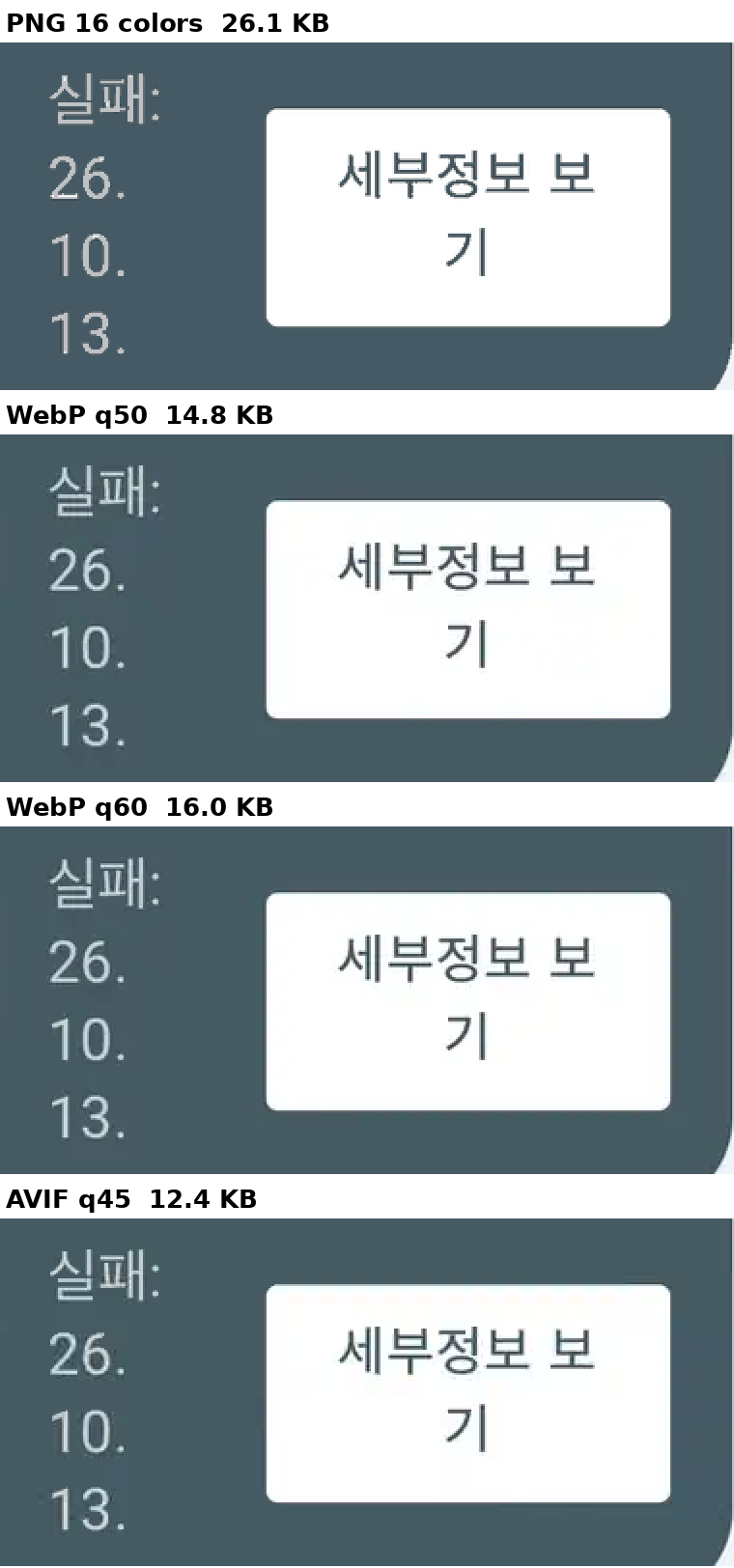
To be honest, all four are readable. The differences are small. Looking closely, WebP q50 is very slightly hazy around the white button's text, while AVIF q45 is the smallest and still clean. So I chose AVIF q45.
Step 4: Use AVIF, fall back to WebP
Every modern browser supports AVIF, but Safari only since 16 (iOS 16). For older devices, I keep a WebP too. With HTML's <picture>, the browser picks the first format it can open.
<picture>
  <source srcset="/images/posts/shot.avif" type="image/avif" />
  <img src="/images/posts/shot.webp" alt="..." width="380" height="427" loading="lazy" decoding="async" />
</picture>
Browsers that support AVIF get the <source> AVIF; others get the <img> WebP. Opening the page in Chromium on the dev server, all 3 loaded as AVIF.
Gotcha: if the <source> file is missing, the image breaks. It's easy to assume "if there's no AVIF, it'll fall back to WebP," but it won't. The browser picks a <source> by its type alone. If that file 404s, it does not fall back to <img>; it shows a broken image. I removed the AVIF on purpose and opened it in Chromium, and got exactly that. So always create AVIF and WebP as a pair.
Making it work in Markdown
This blog writes posts in Markdown with Nuxt Content. I made a custom component for Markdown images () that automatically adds the same-named .avif when you use a .webp.
{width="380" height="427"}
<!-- components/content/ProseImg.vue (condensed) -->
<template>
  <figure>
    <picture>
      <source v-if="avifSrc" :srcset="avifSrc" type="image/avif" />
      <img :src="src" :alt="alt" :width="width" :height="height" loading="lazy" decoding="async" />
    </picture>
    <figcaption v-if="title">{{ title }}</figcaption>
  </figure>
</template>

<script setup>
const props = defineProps({ src: String, alt: String, title: String, width: [String, Number], height: [String, Number] });

const avifSrc = computed(() =>
  props.src.endsWith(".webp") && !props.src.endsWith(".lossless.webp")
    ? props.src.replace(/\.webp$/, ".avif")
    : null
);
</script>
Images that must show compression artifacts as they are, like the comparison above, stay as lossless WebP only (name.lossless.webp) and skip the AVIF lookup.
By default, Nuxt Content renders Markdown images with @nuxt/image's NuxtImg. This blog deploys to Vercel, where images then go through Vercel's image transformation. That gives no guarantee the file I compressed is the one served, so I didn't use it.
Step 5: Load late, reserve space early
Besides file size, when an image downloads matters too.
| Attribute | What it does |
|---|---|
| loading="lazy" | Doesn't download the image until it's near the screen |
| decoding="async" | Keeps image decoding from blocking text rendering |
| width, height | Reserves space before the image arrives, so text doesn't jump down when it loads |
On the dev server, opening the post downloaded only the first image, and the other 2 loaded as I scrolled near them.
Put the display size in width/height. The file is 760×853px but displays at 380px wide, so width="380" height="427". With max-width: 100%; height: auto in CSS, it shrinks proportionally on narrower screens like phones.
Results
| Image | Original | Final (AVIF q45) | Reduction |
|---|---|---|---|
| Not-indexed reasons table | 205KB | 12KB | 94% |
| Crawled, 32 pages screen | 207KB | 12KB | 94% |
| Canonical URL list | 235KB | 20KB | 92% |
| Total | 647KB | 44KB | 93% |
The WebP q60 fallback for browsers without AVIF totals 64KB (a 90% reduction).
The conversion code I used
I cropped, resized, and saved both formats with Python Pillow.
from PIL import Image

im = Image.open("screenshot.png").convert("RGB")
im = im.crop((23, 913, 1156, 2184))             # step 1: keep what matters (left, top, right, bottom)
w = 760                                          # step 2: twice the 380px display width
im = im.resize((w, round(im.height * w / im.width)), Image.LANCZOS)

im.save("shot.avif", "AVIF", quality=45)         # steps 3-4: the default
im.save("shot.webp", "WEBP", quality=60, method=6)  # for browsers without AVIF
Summary
| Step | Effect |
|---|---|
| Crop to what matters | Removes personal info and cuts size nearly in half |
| Resize to 2x the display size | Sharp on retina. But PNG alone can get bigger from this |
| Measure formats and qualities | Don't trust numbers alone; zoom in and check the text |
| AVIF + WebP via <picture> | Use the smallest format and still support older browsers. Always ship both files |
| loading="lazy", width/height | Download when needed, and keep the text from jumping |
There are plenty of image compression tools, but you only know what's smallest for your images by measuring. For screenshots like these, "PNG with fewer colors" was stronger than expected and "WebP lossless" weaker. Photos would likely tell a different story.